Go to Online Store → Themes in your Shopify Admin.
Click Customise next to your active theme.
In the top bar, open the page selector and choose Products → Default product (or the template you use).
In the left-hand sidebar, click Add Block.
Select Apps → Volume Pricing Widget.
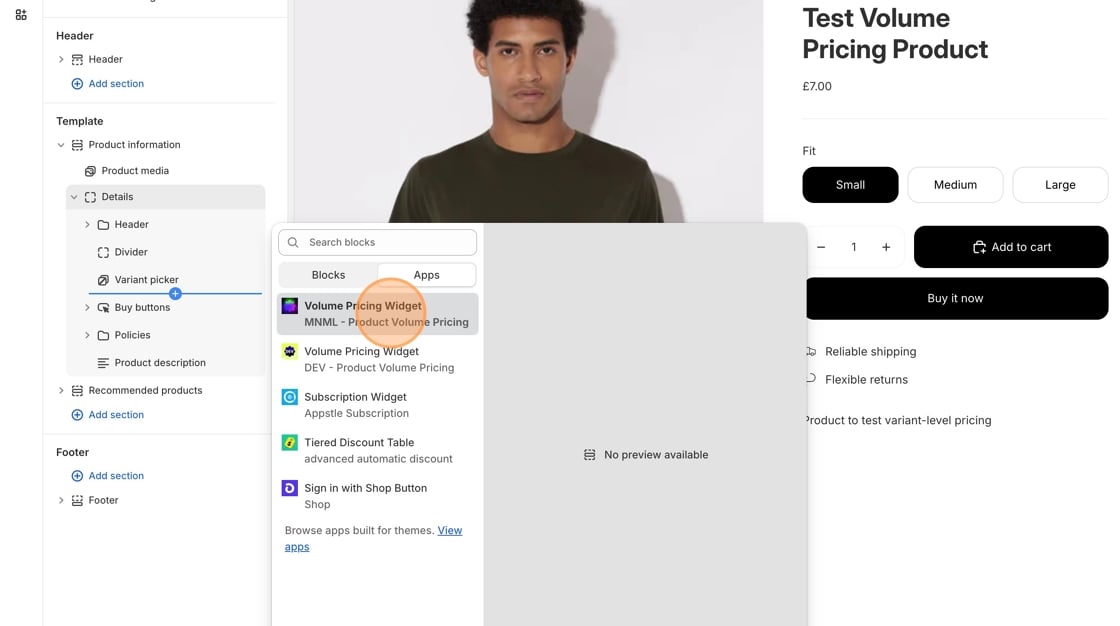
Place it where you want it to appear - usually just below the variant selector or above the quantity field.
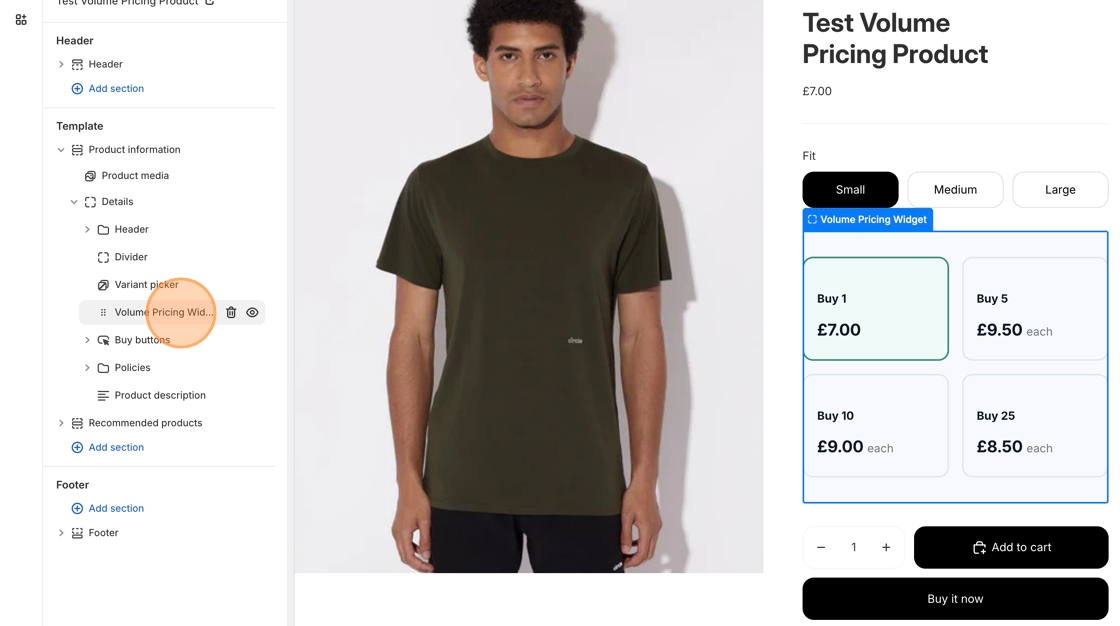
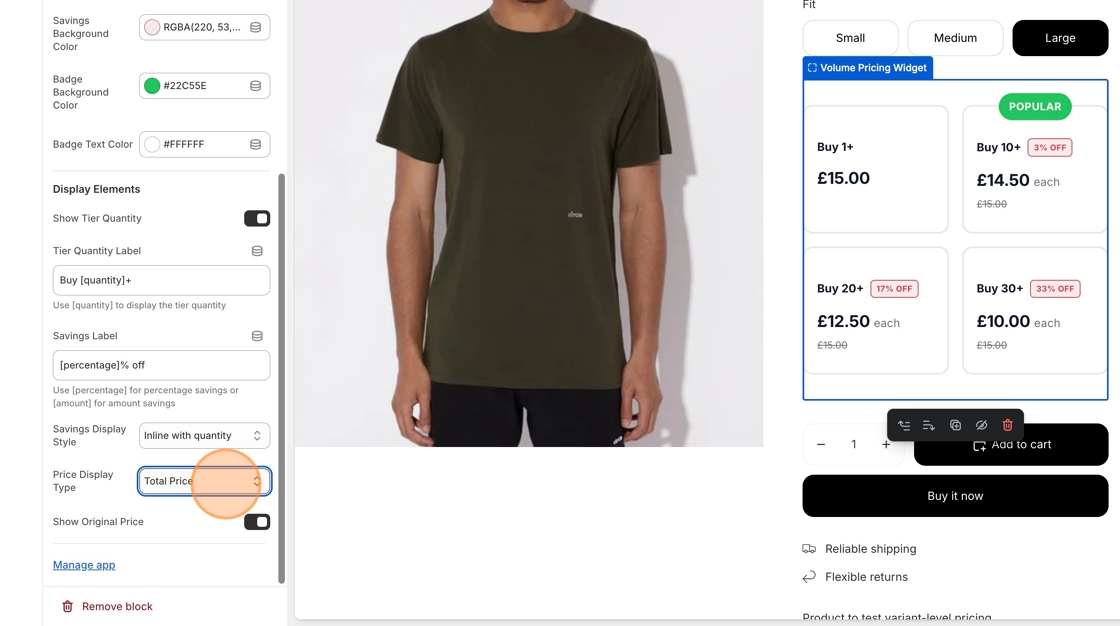
Modify the settings to suit your requirements.
The widget displays each pricing tier, showing the quantity thresholds and discounted prices.
If a customer manually enters a quantity (e.g. typing “22” in the quantity box), the app automatically highlights and applies the correct tier - in this example, the 20+ tier.
When the customer adds the product to their basket, the app automatically applies the correct discount.
The widget automatically appears only for products that have pricing tiers set up.
You can fine-tune the widget’s design and layout directly in the Theme Editor.
Category | Setting | Description |
General | Hide Default Quantity Selector | Hides your theme’s built-in quantity input when volume pricing is active. |
Layout | Tier Content Alignment | Align tier content (left, centre, or right). |
Colour Settings | Border, Background & Text Colours | Adjust all colours for normal, hover, and selected states. |
Savings Display | Savings Label | Format savings using |
Savings Style | Choose how to show savings: Hidden, Tag, Text, or Inline. | |
Display Options | Tier Quantity Label | Format the quantity label (e.g. |
Price Display Type | Show per-item or total pricing. | |
Show Original Price | Optionally display the original crossed-out price. |
The widget currently supports one main layout. More widget styles will be available soon.
We can build custom widgets tailored to your theme or layout - just message us and we’ll create it for you.